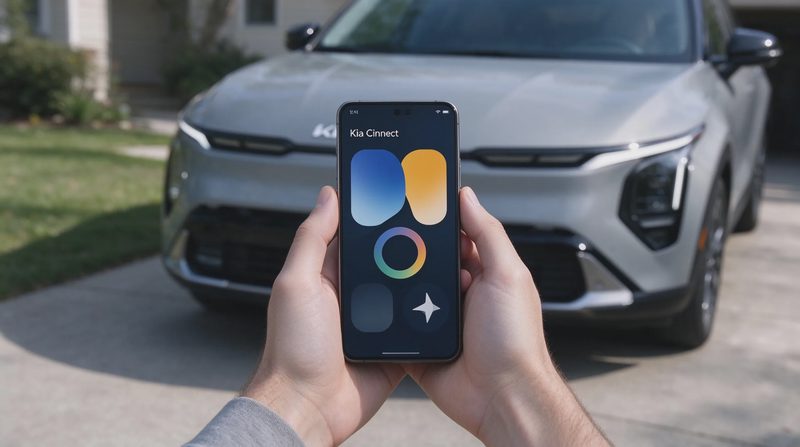
Digital Key 2 lets a compatible iPhone act as a key for supported Kia models. When the feature is set up correctly, the phone can lock, unlock, and start the vehicle without the physical key fob present. Setup is straightforward for most owners, but it requires the right phone hardware, the correct vehicle software state, and a clean pairing sequence. Skipping a step or using an unsupported phone produces confusing error messages and wasted time.
This guide walks through the practical process from compatibility check to daily use. It does not invent model-year lists or claim universal availability. Feature support depends on the specific vehicle, its software version, and the iPhone model and iOS version. The owner’s manual and the official Kia app remain the final references for any particular car.
Confirm Compatibility Before Starting
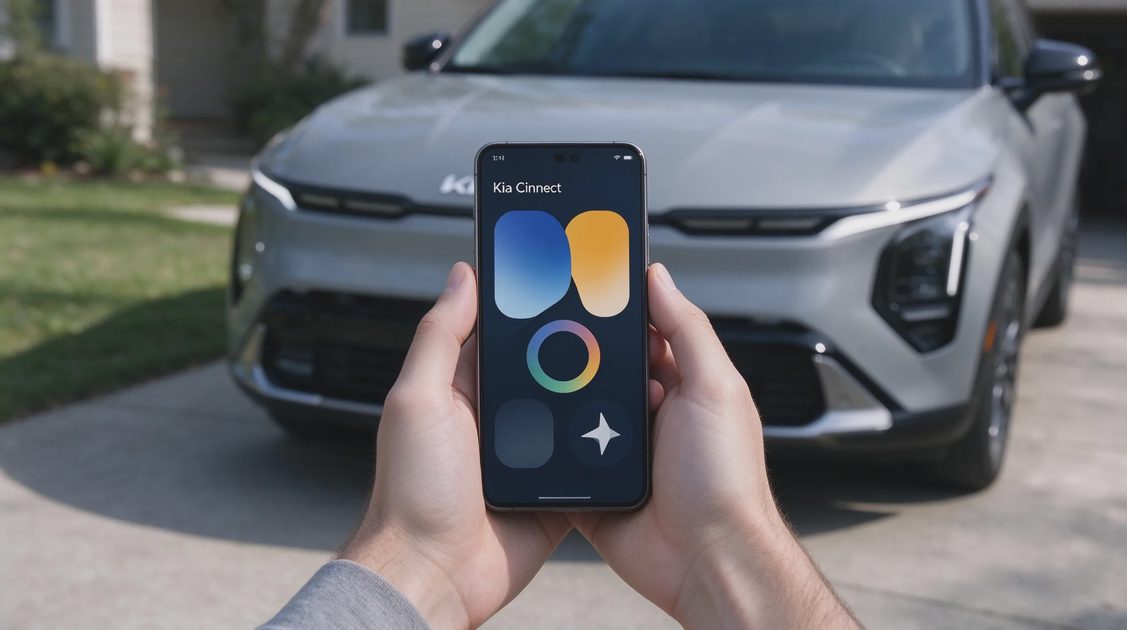
Digital Key 2 requires both vehicle-side and phone-side support. On the vehicle, the feature must be listed as available for the model and model year, and the head-unit or body-control software must be up to date. On the phone side, Apple’s Digital Key capability is limited to specific iPhone models and recent iOS versions. An older phone or an outdated iOS installation will simply not complete the pairing.
Check the vehicle’s settings menus or the Kia app for a Digital Key or Phone Key option. If the option is absent, a software update or a dealer visit may be required before setup can begin. On the iPhone, confirm that the model and iOS version meet Apple’s current requirements for car digital keys. Attempting setup with incompatible hardware produces errors that look like process failures when the real issue is unsupported equipment.
Prepare the Phone and the Vehicle
Update the iPhone to the latest available iOS version compatible with Digital Key. Install or update the official Kia app and ensure the vehicle is already linked to the owner’s account. The physical key fob should be present and working; many setups require the fob to authorize the first digital key. Park the vehicle in a location with stable cellular or Wi-Fi service so that account verification does not fail mid-process.
Disable any aggressive battery-saving modes that restrict background activity during the short setup window. Charge the phone so that it does not power down while the pairing completes. Inside the vehicle, make sure the ignition is in the correct state as directed by the on-screen prompts—usually accessory or on, without the engine necessarily running. Having both the app and the vehicle’s own menus ready prevents interrupted sequences.
Initiate Pairing Through the App or Vehicle Menu
Open the Kia app and navigate to the Digital Key or Phone Key section for the linked vehicle. Select the option to add a new digital key and follow the prompts. The app will typically ask the user to hold the iPhone near the vehicle’s NFC antenna—often located in the door handle or on the start button console—and to confirm ownership with the physical key or an in-vehicle authorization.
Some model years begin the process from the vehicle’s head-unit settings rather than the phone app. In that case, locate the Digital Key menu on the screen, choose the add-phone option, and then follow the instructions that appear on both the screen and the phone. The two devices exchange credentials over NFC and then establish the ongoing Bluetooth and ultra-wideband (if supported) relationship. Keep the phone unlocked and near the designated antenna until the confirmation message appears.
Complete the Wallet and System Registration
Once the vehicle accepts the phone, the iPhone will prompt to add the key to Apple Wallet. Confirm the addition. The digital key then appears in Wallet alongside any other passes and keys. Some vehicles also require a final confirmation step inside the car or the app to activate full functions such as remote start or passive entry.
Test the basic functions immediately: lock and unlock from a short distance, and start the vehicle with the phone inside the cabin and the physical fob removed. If any function fails, note the exact error message and reverse the last step before repeating the entire pairing. A successful test confirms that the credentials were written correctly and that the phone is recognized as an authorized key.
Understand Daily Behavior and Limits
With Digital Key 2 active, the phone can unlock the doors when it is near the vehicle and can allow a push-button start when it is inside the cabin. Range and responsiveness depend on phone battery level, case thickness, and whether the phone is in a pocket, bag, or mount. A completely depleted phone cannot act as a key; keeping a physical fob available remains prudent.
Sharing a digital key with a family member is possible on supported systems, but each shared key must be managed through the app or Wallet and can be revoked later. Some functions, such as certain remote climate or charging controls, may still require the app rather than the Wallet key itself. Knowing which actions are handled by the digital key and which remain app-based prevents confusion during daily use.
Troubleshoot Common Setup Failures
The table below summarizes frequent setup problems and the most effective first responses.
Problem | Likely Cause | First Response |
|---|---|---|
Digital Key option missing in app | Vehicle software or model not supported | Check for vehicle updates; confirm model year |
Pairing fails at NFC step | Phone not close enough or wrong antenna | Hold phone steady at documented location |
Wallet addition fails | iOS version or phone model unsupported | Update iOS; verify phone compatibility |
Key appears but will not start car | Incomplete activation or fob still needed | Complete in-vehicle confirmation steps |
Intermittent unlock after setup | Phone battery low or case interference | Charge phone; test without thick case |
Shared key does not work for family | Sharing steps incomplete or revoked | Re-share from owner’s app; confirm acceptance |
Working through the table in order resolves most early failures without a dealer visit.
Maintain the Digital Key Over Time
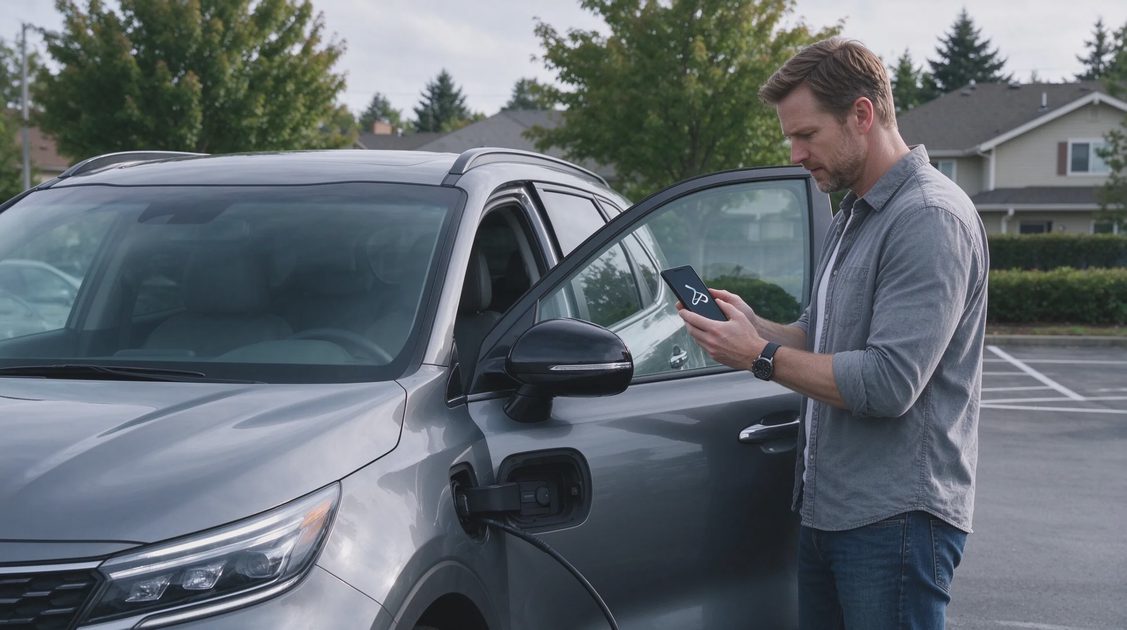
After successful setup, keep the iPhone’s software current and periodically confirm that the key still appears in Wallet. If the phone is replaced, the digital key must be removed from the old device and set up again on the new one. If the vehicle’s software is updated at a dealer, retest the digital key afterward; most updates preserve credentials, but a quick verification prevents surprises.
Digital Key 2 does not eliminate the need for a physical backup. Phones are lost, batteries die, and software glitches occur. Treating the phone as a convenient primary key while retaining a working fob for emergencies keeps the system useful without creating new points of failure. When the setup is completed carefully and the compatibility requirements are respected, Digital Key 2 becomes a reliable daily convenience rather than a source of repeated troubleshooting.

