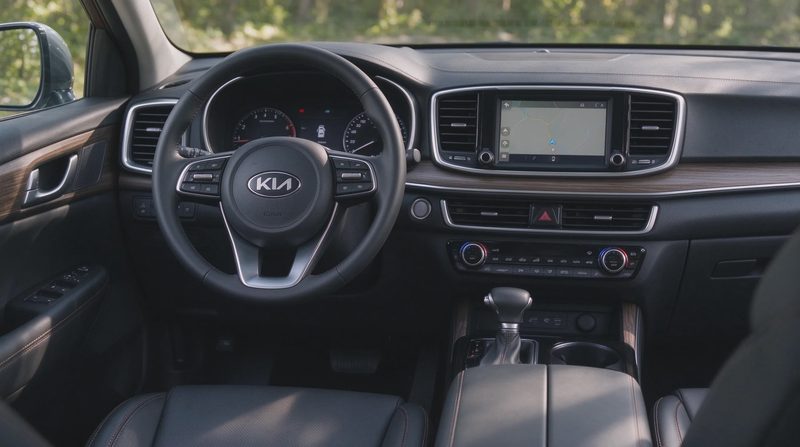
Wireless Apple CarPlay is convenient when it works and frustrating when it drops mid-drive. The connection starts, the phone appears on the screen, and then the audio cuts out, the map freezes, or the system reverts to the native interface without warning. These interruptions are common enough across multiple model years that owners develop a short list of fixes before scheduling a dealer visit. Most of the useful steps can be performed at home with the phone and the vehicle’s own menus.
This guide walks through the practical order of operations that resolves the majority of intermittent wireless CarPlay problems. It does not invent software versions or claim universal results. Connection stability depends on the phone’s software, the vehicle’s head-unit software, the phone’s case and mounting position, and the radio environment inside the cabin. The goal is a stable daily connection without unnecessary parts replacement.
Confirm the Problem Is Wireless-Specific
Before changing settings, verify that the issue is limited to the wireless connection. Plug the phone in with a known-good cable and test wired CarPlay. If the wired connection is stable while the wireless connection drops, the problem is more likely related to the wireless pathway—Bluetooth and Wi-Fi handoff, interference, or software negotiation—than to a complete failure of the CarPlay feature itself.
Also note when the dropouts occur. Immediate disconnection after the initial handshake points to a pairing or authentication problem. Dropouts after several minutes of use suggest interference, thermal throttling, or a background process on the phone. Dropouts only on certain roads or near strong radio sources hint at external interference. Recording these patterns makes later troubleshooting faster and more precise.
Restart Both Devices in the Right Order
A clean restart clears temporary glitches in both the phone and the head unit. Turn the vehicle completely off, open the driver’s door to ensure the system powers down, and wait a full minute. On the iPhone, perform a full restart rather than a simple lock-screen wake. After both devices have rebooted, start the vehicle and let the head unit complete its boot sequence before unlocking the phone or attempting to connect.
This sequence eliminates many one-time software stalls. If the connection is stable after the dual restart, the underlying cause may have been a temporary process conflict. If the dropouts return quickly, move to the next steps rather than repeating restarts indefinitely. Consistency in the power-down and restart order improves the chance that the test is meaningful.
Forget the Connection and Re-Pair Cleanly
Corrupted pairing data is a frequent source of intermittent wireless CarPlay behavior. On the iPhone, go to Settings > General > CarPlay, select the Kia, and choose Forget This Car. Also check Bluetooth settings and remove the vehicle if it appears there as a separate entry. In the vehicle’s Bluetooth or connectivity menu, delete the phone from the list of paired devices.
After both sides have forgotten each other, restart the phone and the vehicle once more. Then initiate pairing from the vehicle’s prompt or from the phone’s CarPlay settings. Complete any permission requests for contacts, Siri, and location. A clean re-pair often restores stable behavior when the previous pairing had become inconsistent after software updates on either device.
Check Phone Software and Background Activity
Outdated iOS versions and aggressive background app refresh can interfere with the sustained Wi-Fi and Bluetooth sessions that wireless CarPlay requires. Update the iPhone to the latest available iOS version that is compatible with the vehicle. After updating, retest the connection before changing other variables.
Disable or limit background activity for apps that are known to be heavy network users if dropouts continue. Low Power Mode can also affect wireless performance; test with it turned off. Ensure the phone is not running multiple navigation or audio apps that compete for the same resources. A phone that is thermally hot from charging or from sun exposure may throttle its radios; a vent mount that keeps the phone cooler can improve stability on long drives.
Inspect the Vehicle’s Software and Settings
Head-unit software updates address many CarPlay compatibility issues. Check for available updates through the vehicle’s settings menu or the manufacturer’s recommended method for the model year. If an update is available, install it and retest. Note that some updates require a stable Wi-Fi connection or a dealer visit depending on the system.
Inside the vehicle’s connectivity menus, confirm that wireless CarPlay is enabled and that the phone is set as a preferred or authorized device. Disable any unused Bluetooth devices that the head unit may be attempting to maintain. If the system offers a choice between wireless and wired priority, experiment with the setting that matches daily use. After any change, perform a full vehicle power cycle before judging the result.
Reduce Interference and Optimize Placement
Wireless CarPlay uses both Bluetooth and a dedicated Wi-Fi link. Sources of interference inside the cabin include other phones, USB hubs, poorly shielded chargers, and certain phone cases with metal plates for magnetic mounts. Remove the case temporarily and retest. Move the phone to a different mount location farther from the head unit or from other electronics.
If the vehicle has a built-in wireless charger, test with the phone on and off the charger. Some combinations of wireless charging and wireless CarPlay produce more dropouts than either feature alone. A simple cable-based charge while using wireless CarPlay can isolate whether the wireless charger is contributing to the problem. External Wi-Fi hotspots or strong cellular signals in dense urban areas can also compete; noting where dropouts occur helps identify environmental factors.

Know When to Escalate to the Dealer
If clean re-pairing, software updates, interference reduction, and phone-side adjustments do not produce a stable connection, document the steps already taken and schedule a service visit. Provide the service advisor with the phone model, iOS version, approximate frequency of dropouts, and whether wired CarPlay works. This information shortens diagnosis.
Some issues ultimately require a head-unit software reflash, a module replacement, or a technical service bulletin that is not yet visible to owners. Others turn out to be phone-specific and resolve with a later iOS update. Keeping a short log of when the problem occurs and what has already been tried prevents repeated basic steps at the dealer and focuses the visit on the remaining possibilities. Most wireless CarPlay disconnects can be improved or eliminated with the systematic steps above; the minority that remain become much easier to resolve once the simple causes have been ruled out.

